⚠︎ Risk warning: leveraged derivatives on unregulated platforms — you can lose everything you deposit. Not investment advice.
The Hyperliquid Screen, Explained
Definitions verified against official Hyperliquid docs on 2026-07-23. Screenshots are from our own account, taken the same day — numbers in them were live then and will differ now.
A perp DEX trading screen is genuinely intimidating the first time — a wall of numbers, three tabs of order types, and buttons whose names explain nothing. This page walks the whole interface, control by control, using screenshots from our own working account. If you haven't onboarded yet, start with the how-to-start guide; if perps themselves are new, read the perpetuals explainer first.
The Trade Screen at a Glance
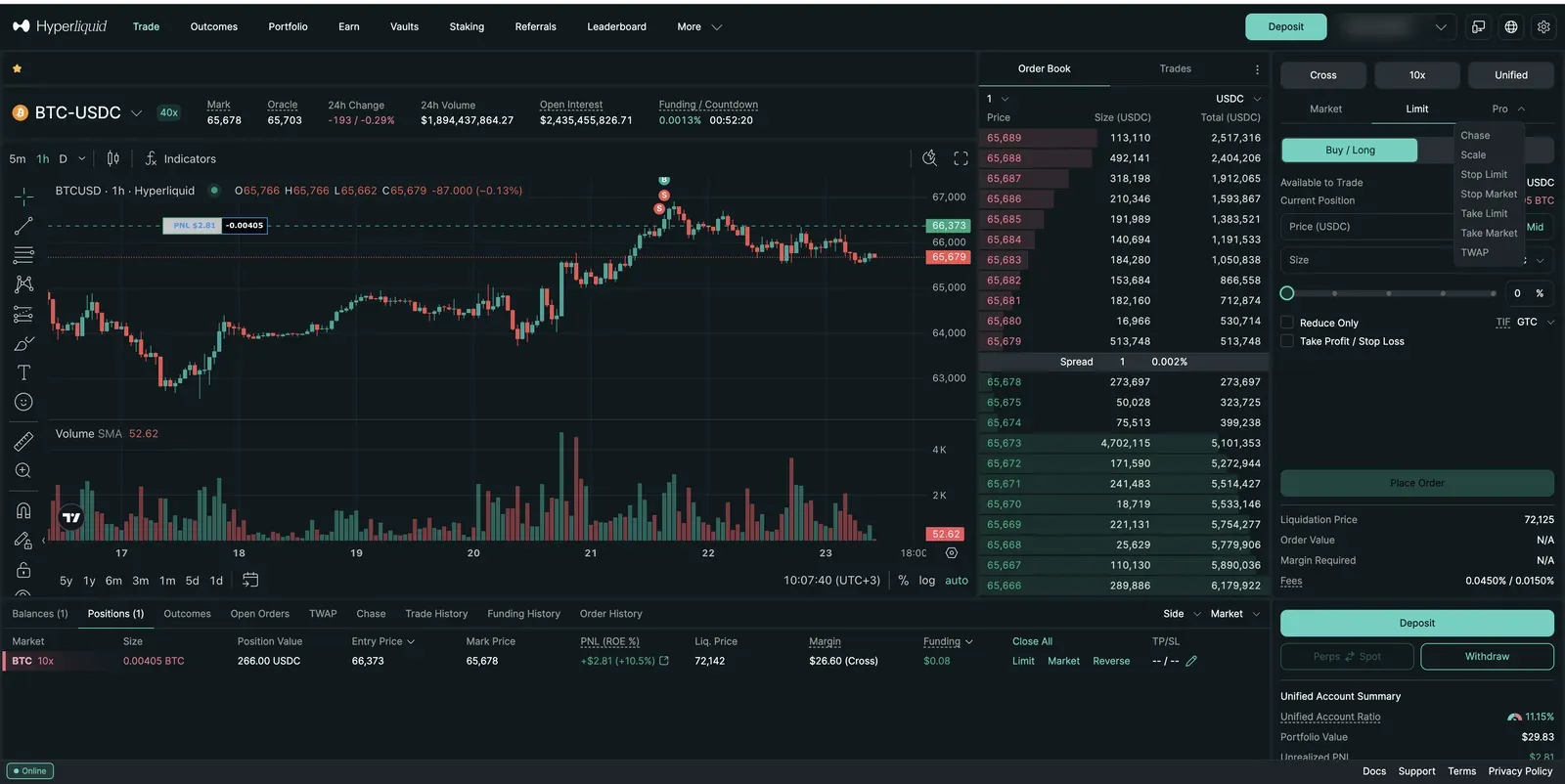
Four regions: the market header across the top, the chart (TradingView-powered), the order book, and the order panel on the right — with your positions and history in the strip along the bottom. Everything else on the screen hangs off one of these.
The Market Header: Two Prices, Not One
The header shows Mark and Oracle prices side by side, and the distinction matters. Per the official docs, the oracle price is a weighted median of prices from major external exchanges, updated by validators roughly every three seconds — it deliberately doesn't depend on Hyperliquid's own market data, and it's what funding rates are computed from. The mark price blends the oracle price with Hyperliquid's own order book and external perp prices, and is — per the docs — "used for margining, liquidations, triggering TP/SL, and computing unrealized pnl." In short: oracle anchors funding, mark decides your fate.
Funding / Countdown shows the current funding rate and the time to the next settlement. Hyperliquid pays funding every hour, with the premium sampled every five seconds and averaged across the hour. Our funding guide covers what the number does to your position; the live funding table shows it for every market.
Cross vs Isolated: the First Button That Matters
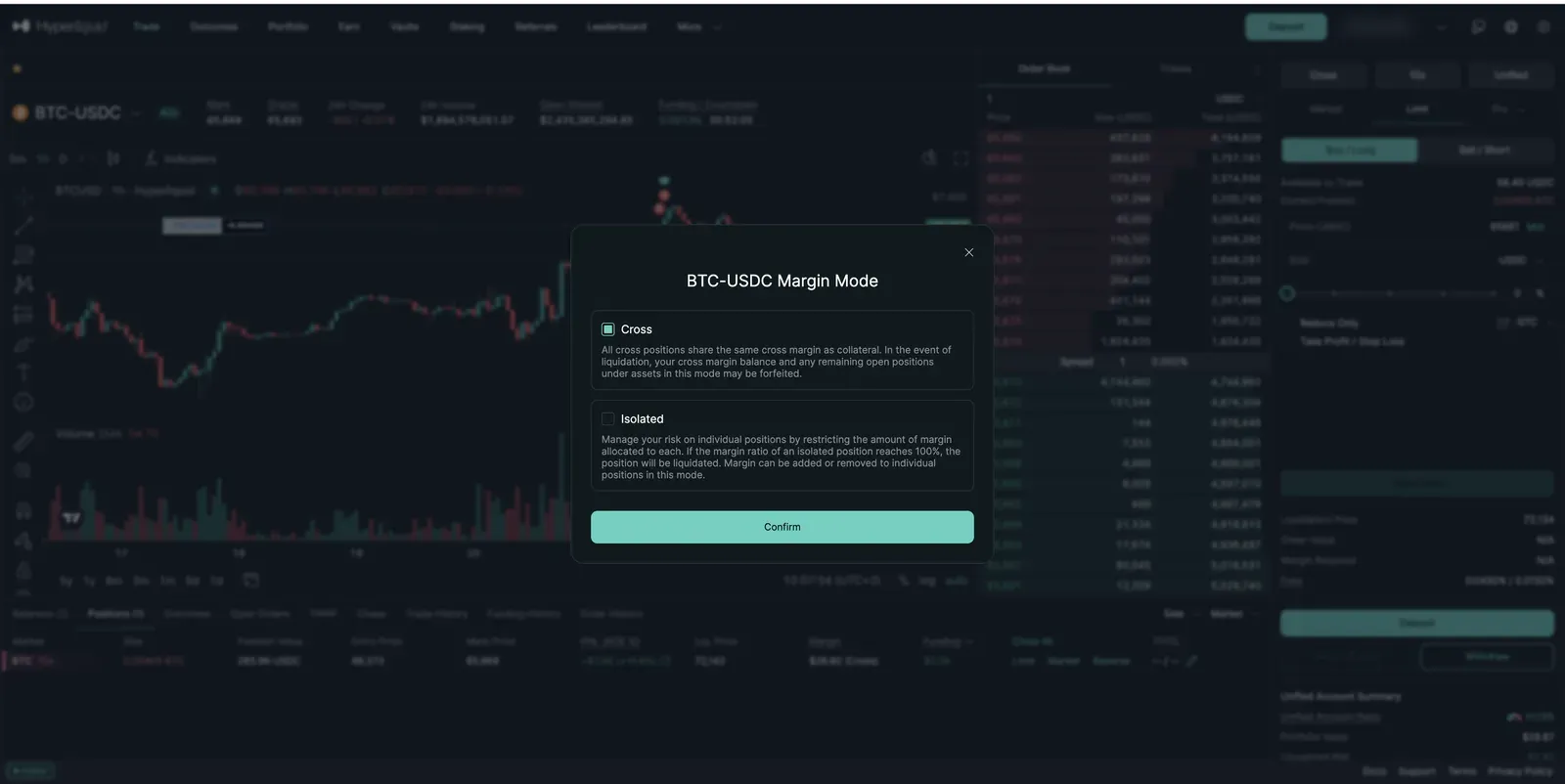
The button showing Cross (or Isolated) opens this dialog, and the app's own wording is accurate: in cross mode, all cross positions share your margin as one pool; in isolated mode, each position gets only the margin you assign it. The docs state the consequence plainly: an isolated position's liquidation leaves your "cross margin and positions untouched," while a cross liquidation can consume your whole cross balance. One less obvious interaction, straight from the docs: for cross positions the liquidation price doesn't depend on your leverage setting (lower leverage just reserves more collateral), while for isolated positions leverage directly moves the liquidation price. For a first trade, isolated with a small assigned margin is the contained way to learn — a mistake costs exactly what you assigned, no more.
The Account Type Dialog (the "Unified" Button)
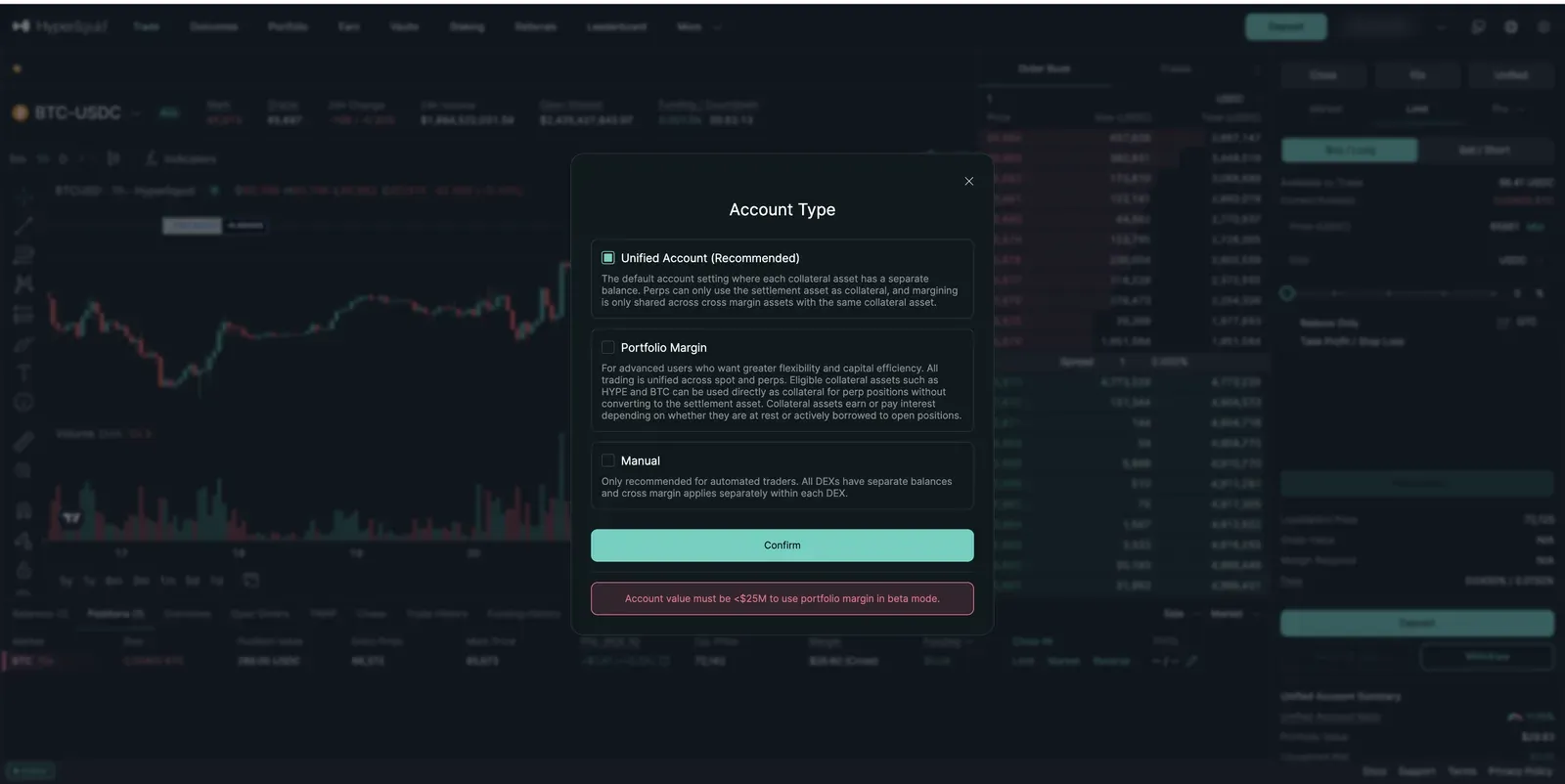
The Unified button opens the account-type choice. The default, per the docs, is the unified account: a "single balance for each asset" shared between spot and cross-margin perps in that asset. Portfolio Margin is the advanced opt-in — eligible assets like HYPE or BTC can collateralize perp positions directly — and Manual keeps balances separate (the app itself says it's "only recommended for automated traders"). The Unified Account Ratio in the bottom-right summary tracks margin used against available collateral; keep it low. One honesty note: the docs define this ratio only as code, without stating a liquidation threshold for it — the documented 95% liquidation threshold applies to the separate portfolio-margin ratio — so treat a rising ratio as a warning light rather than assuming a known cliff edge.
Market, Limit — and Everything in the Pro Menu
The order panel's three tabs are Market, Limit, and Pro — the dropdown that intimidates everyone. Every entry, with its official definition:
- Market — executes immediately at the current price. You pay the taker fee and cross the spread, in exchange for certainty.
- Limit — executes at your price or better, if the market ever gets there. May never fill; that's the deal.
- Chase — the newest type: a post-only limit order that "automatically re-prices to track the best bid or ask until it is filled," always filling as a maker. Two documented quirks worth knowing: chase orders run in your browser tab — closing or refreshing the tab terminates them — and at most 5 can be active at once.
- Scale — "multiple limit orders in a set price range": one action lays a ladder of limit orders instead of a single price.
- Stop Market / Stop Limit — orders that activate only when price reaches your trigger, then execute as a market or limit order respectively. The classic use is the protective stop below a long.
- Take Market / Take Limit — the mirror image: triggers that fire in the profitable direction to take gains.
- TWAP — splits a large order into suborders executed every 30 seconds (each capped at 3% slippage, per the docs), spreading a big trade over time instead of moving the book in one hit.
Below the tabs: Reduce Only makes an order only ever shrink your position, never accidentally open one the other way — a safety worth using on every exit order. TIF (time-in-force) offers GTC ("rests on the order book until it is filled or canceled"), Post Only/ALO (only ever rests — guarantees maker), and IOC (fills immediately or cancels).
Take Profit / Stop Loss
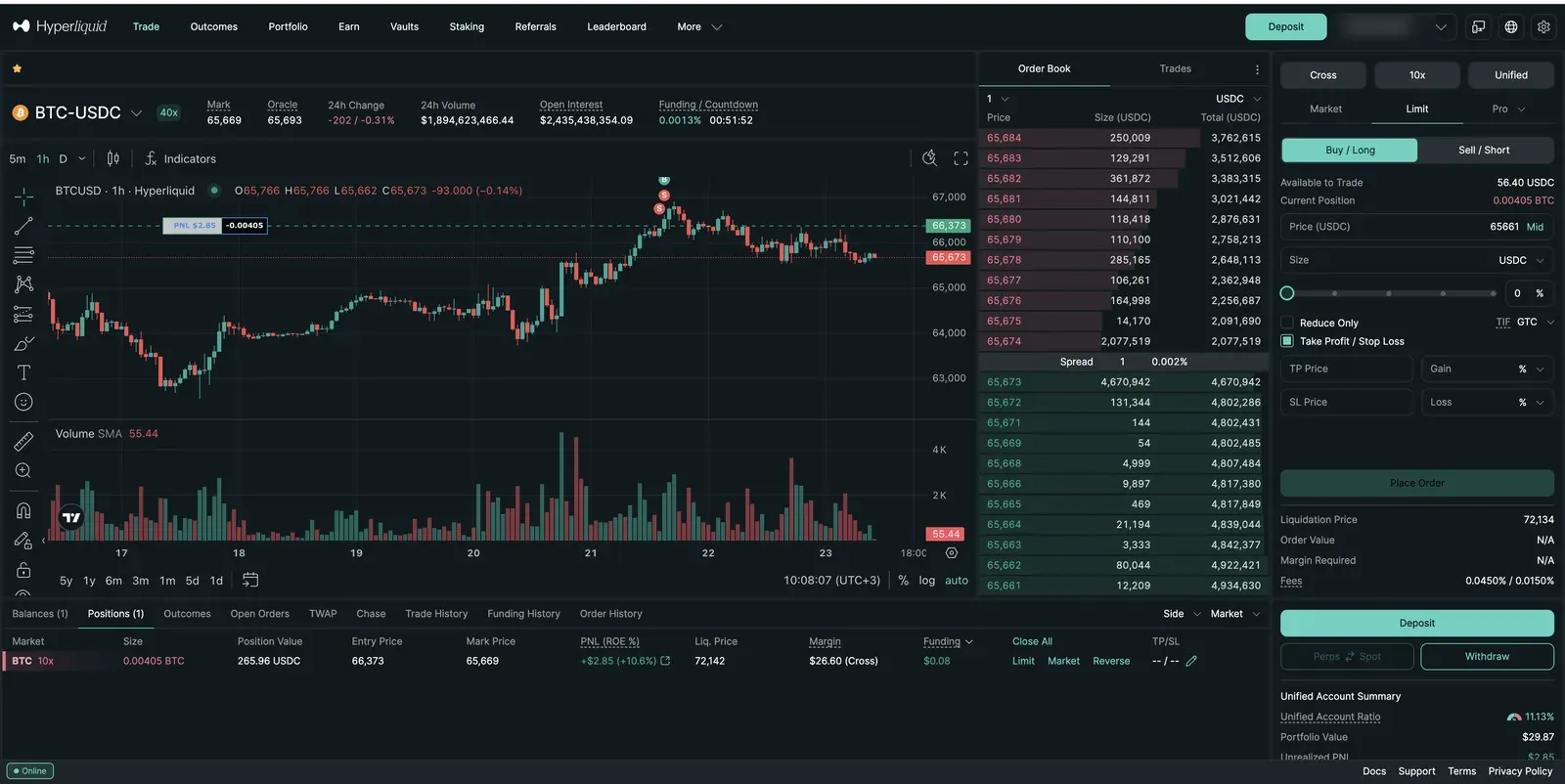
Ticking Take Profit / Stop Loss attaches exit orders to your entry: a price (or gain/loss percentage) at which to take profit, and one at which to cut the loss. Three docs-verified mechanics that newbies learn the hard way: TP/SL triggers fire on the mark price (not the last trade you saw); triggered TP/SL are market orders by default with a 10% slippage tolerance — set a limit price on them if you want to control execution; and a stop is a trigger, not a guarantee — in a fast move, liquidation can beat it. Our leverage & liquidation guide covers that math.
The Numbers Under "Place Order"
Liquidation Price — the estimated price at which this position would be forcibly closed; the docs publish the exact formula, and our liquidation guide walks it in plain language. Order Value — your position's notional size (size × price; our plain-language description — the docs don't define this label). Margin Required — per the docs, position size × mark price ÷ leverage: the collateral this order reserves. Fees — taker/maker rates for your account; the screenshots show 0.0450%/0.0150%, the base tier with no discounts, exactly matching the published fee schedule (a referral discount would lower them 4%).
The Bottom Strip: Your Positions
Once a position is open, the bottom table is your dashboard. Entry Price is where you got in; Mark Price is what you're being measured against; PNL (ROE%) shows profit both in dollars and as return on the equity you committed. Liq. Price is the number to respect. Margin shows the collateral (and mode — "(Cross)" in our screenshot) behind the position, and Funding accumulates what the position has paid or received hourly. Close All / Limit / Market close positions; Reverse flips a long into an equal short (or vice versa) — a genuinely dangerous button for a newbie, since it doesn't just exit, it re-enters the other way.
Beyond the Trade Tab
Portfolio
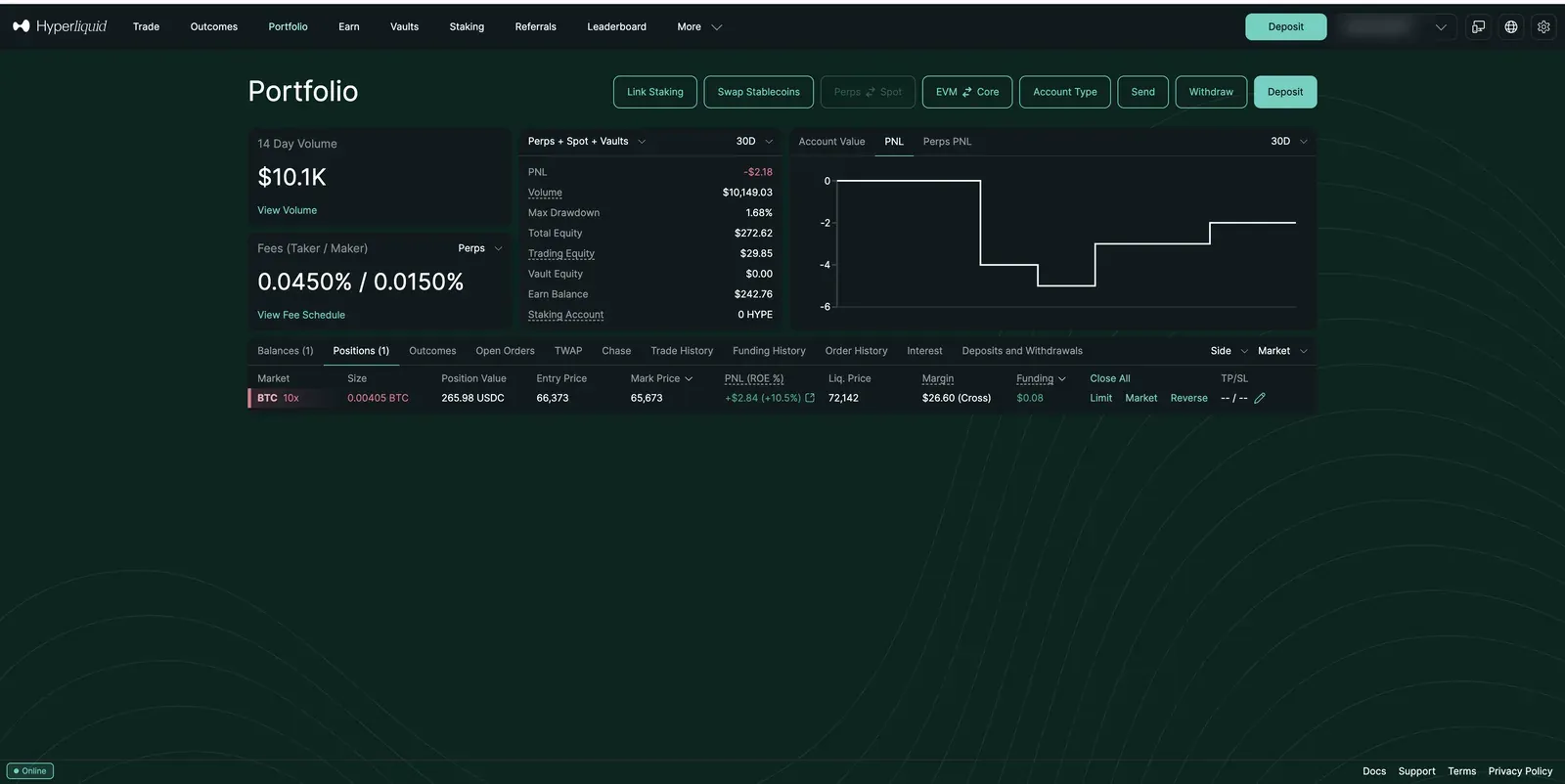
The Portfolio page is your account in one view: rolling 14-day volume (which drives volume-tier fee discounts), your current taker/maker rates, a PnL chart, and — worth studying — the equity split: trading balance, vault deposits, Earn balance, and staking are separate pots. The screenshot is our real account after the setup runs this site documents: about $10.1K of careful round-trip volume, a small live position, and a slightly negative month. We publish it because that's what an honest small account looks like — not a marketing screenshot.
Vaults, Staking, and Earn
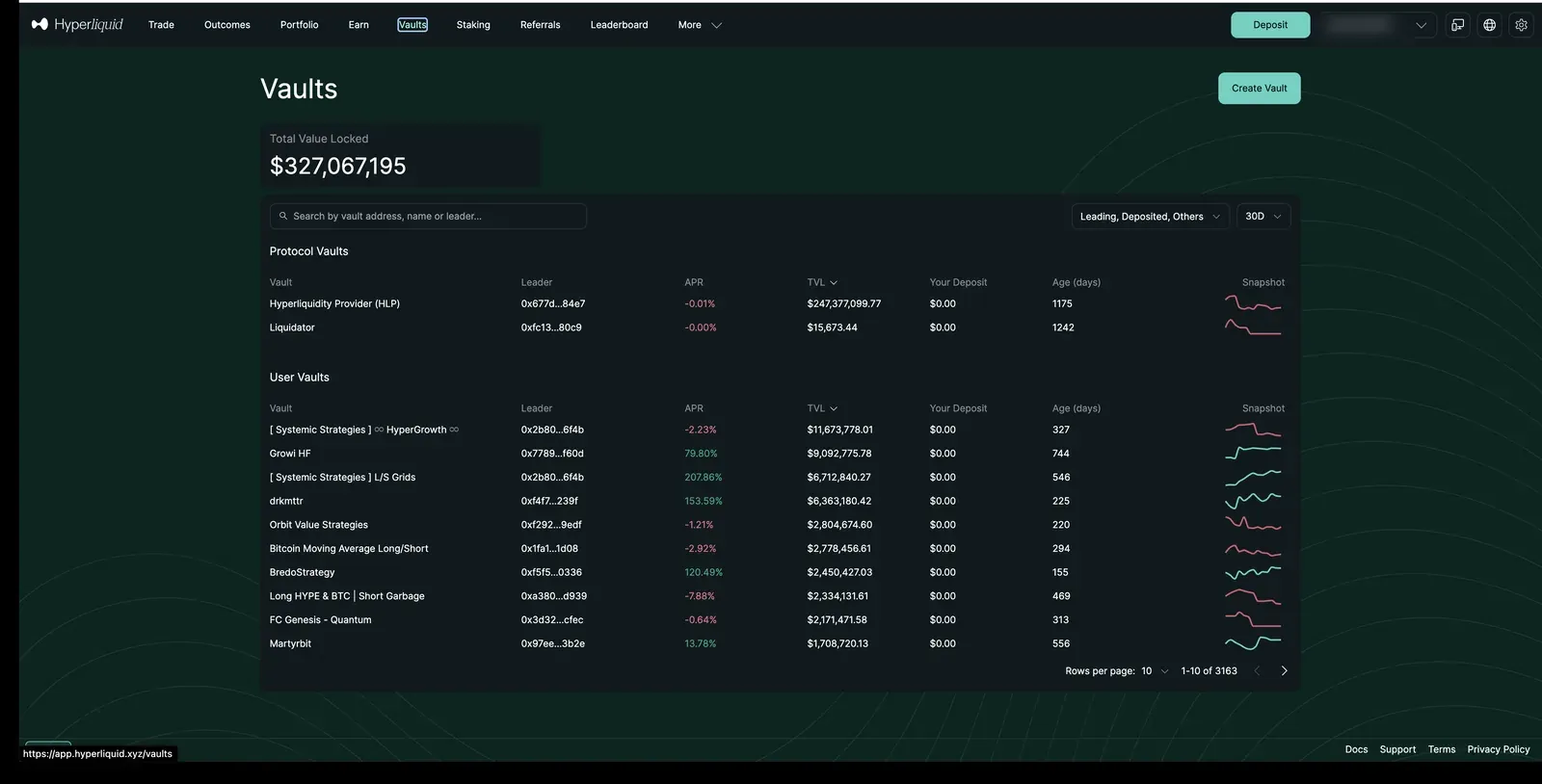
Three different ways money earns (or doesn't) outside of trading, each covered in depth elsewhere on this site: Vaults (note HLP's slightly negative 30-day APR in our screenshot — vault returns are realized results, not promises), Staking (delegating HYPE to validators — the validator list showed estimated APRs around 2% when we captured it), and Earn, a lending market where stablecoins can be supplied for yield. The honest framing for all three lives in our earning guide.
Outcomes
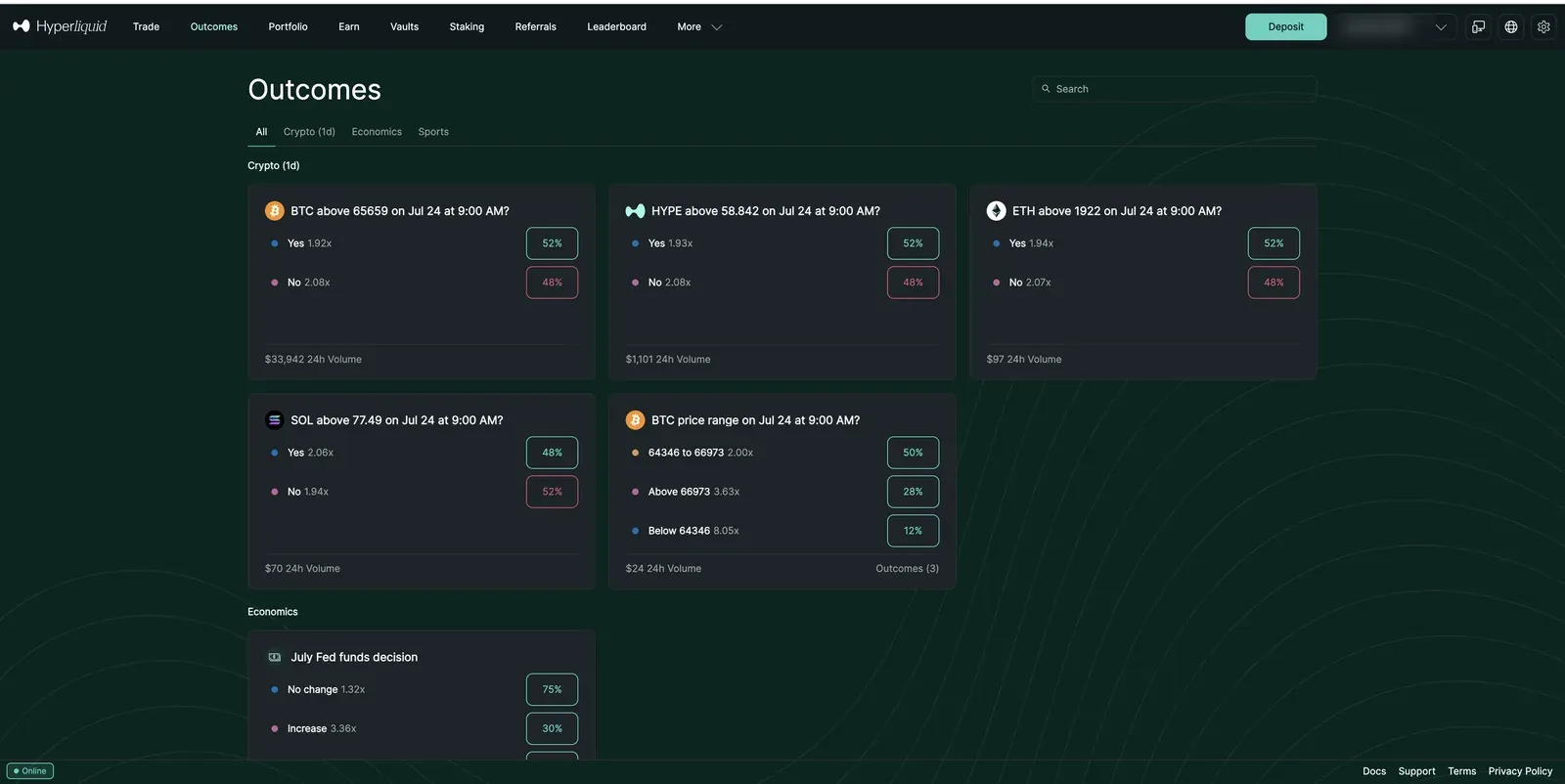
The Outcomes tab is HIP-4's prediction-style market list — Yes/No questions priced as implied probabilities, fully collateralized, no leverage or liquidations. It's a different instrument from perps entirely; our outcome markets guide explains the mechanics and what the docs do and don't yet define.
The Faucet (Testnet): Practice With Fake Money
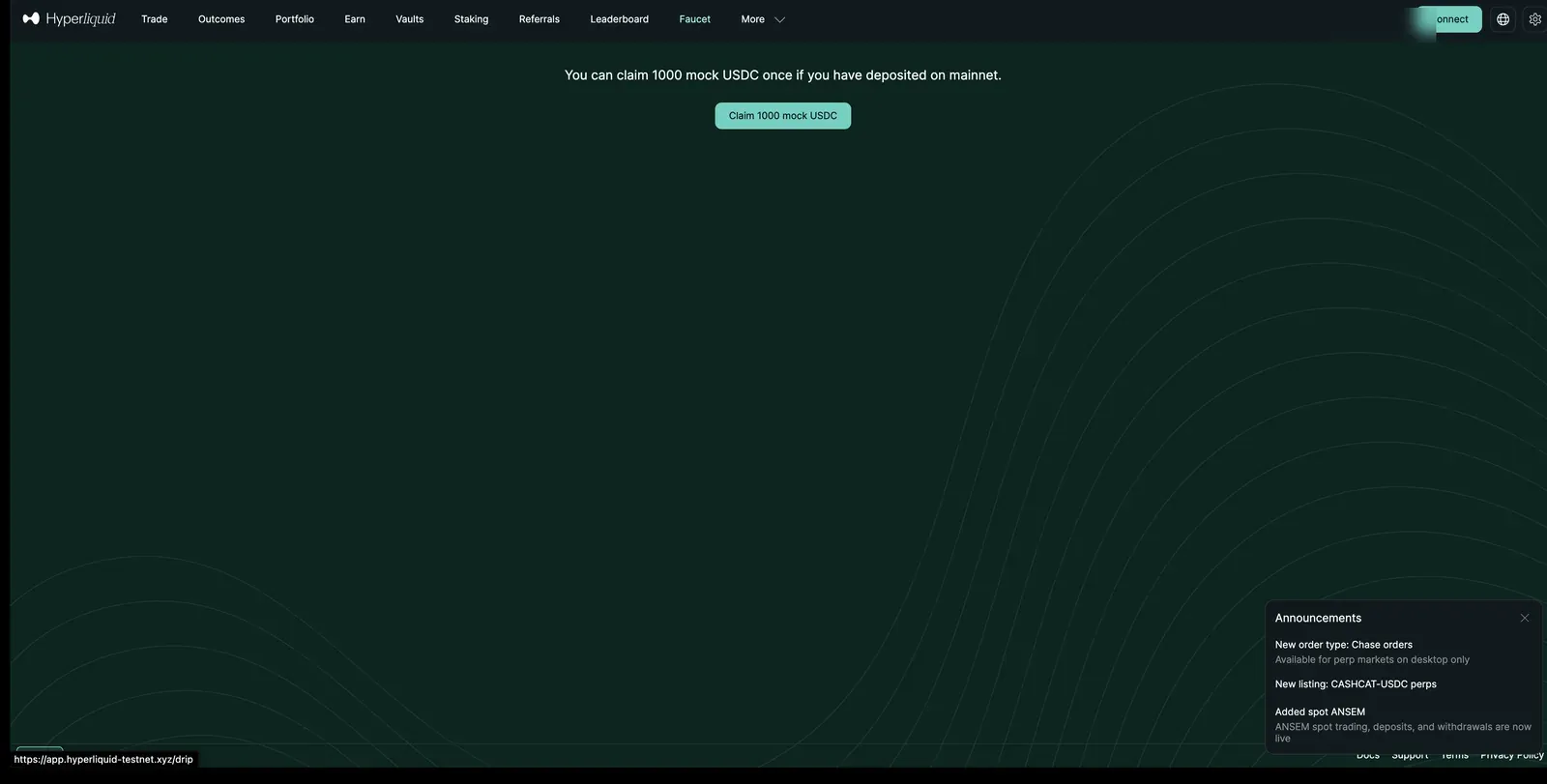
If you've seen "Faucet" mentioned and wondered — it's not on the main app at all. It lives on Hyperliquid's testnet, a parallel practice environment, and per the docs it dispenses 1,000 mock USDC, once, to addresses that have deposited on mainnet. For a newbie this is genuinely underrated: every order type on this page can be practiced there with zero real money at risk. The one requirement is that first real mainnet deposit.
Frequently Asked Questions
Cross or isolated for a first trade?
Isolated, with a deliberately small assigned margin, is the contained way to learn: the most a liquidation can take is what you assigned to that position. Cross is more capital-efficient precisely because everything backs everything — which is also why a bad position in cross mode can drain the account. That trade-off is the whole choice.
What's the countdown next to the funding rate?
Time to the next hourly funding settlement. At that moment, longs and shorts exchange the funding payment at the displayed rate — see the funding guide for which side pays.
Is a Chase order set-and-forget?
No — the opposite. Per the docs it runs in the browser tab where you created it: closing or refreshing the tab, switching wallet, or connecting the same address in another browser terminates it. It's a tool for an attended session, not an overnight order.
Open Hyperliquid (opens in a new tab)
This page contains affiliate links. Screenshots are of our own account and carry no compensation from Hyperliquid; values shown were live on the capture date and change constantly. See our methodology.